Campaign Setup
A Campaign controls the visual and UX experience of your referral program — the floating invite button, the sharing modal, the new-user welcome banner, and the branding colors. Configure it once and the SDK renders everything automatically.
Overview
Each project has a single Campaign configuration with two halves:
Referrer Experience
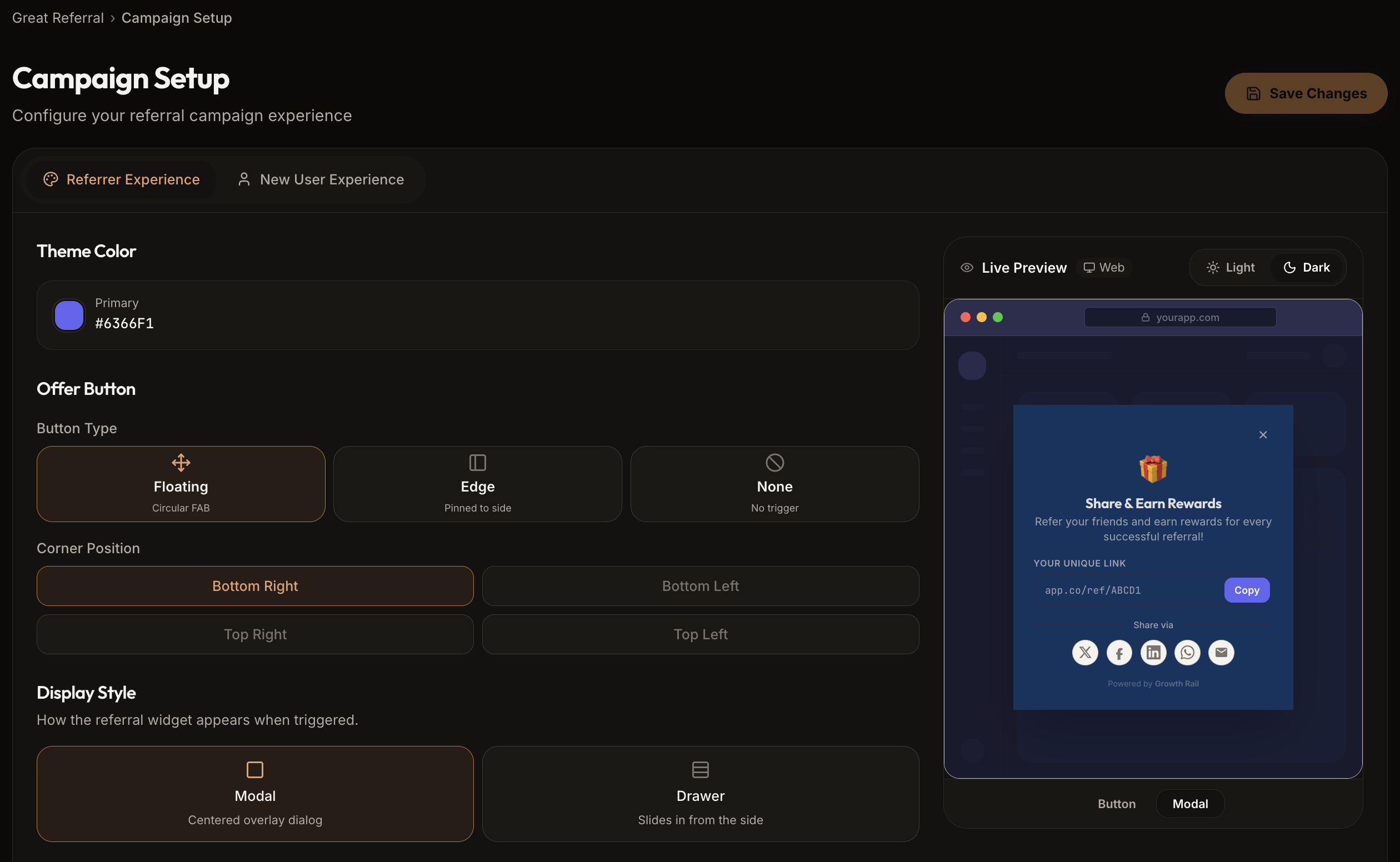
What your existing users see. Includes the floating trigger button and the referral sharing modal/drawer with their referral link, copy button, and social sharing options.
New User Experience
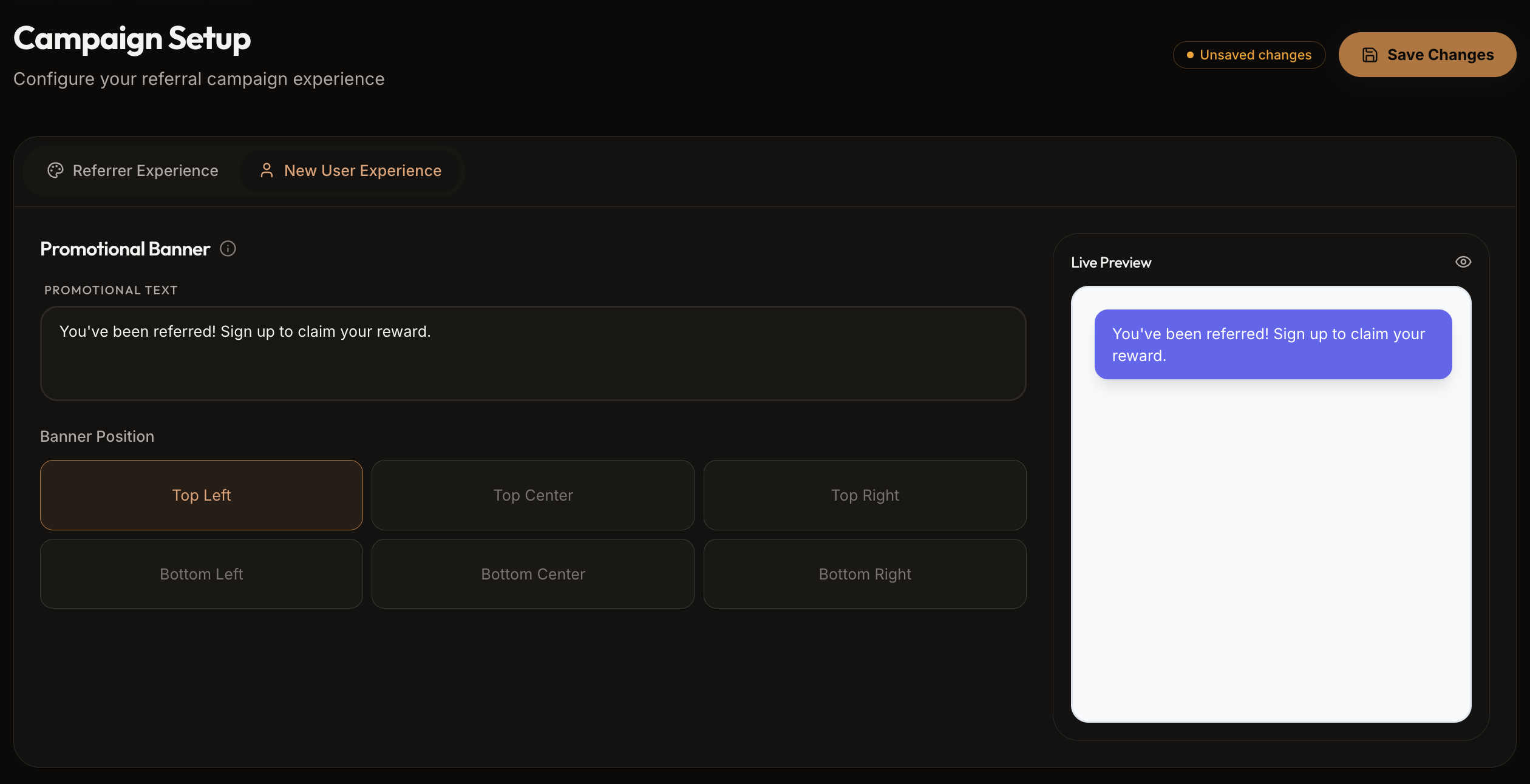
What referred visitors see when they arrive via a referral link. A promotional banner with custom text and positioning to encourage signup.
Configure these in the dashboard under Campaign Setup.
Referrer Experience
The Referrer Experience is what your existing users see when they open your app. It consists of a trigger button and a sharing modal or drawer.
Trigger Button
The trigger button is a floating element that opens the referral sharing UI when clicked. Configure its appearance and position.
| Field | Values | Description |
|---|---|---|
buttonType | floating edge none | floating — a pill/FAB that hovers over content. edge — a tab pinned to the viewport edge. none — no button rendered (use manual trigger). |
buttonPosition | bottom-right | bottom-left | top-right | top-left | Corner of the viewport where the button appears. |
displayMode is set to none, no trigger button is rendered. You can open the referral dashboard manually using showReferralDashboard().Modal / Drawer
When the trigger button is clicked (or you call showReferralDashboard()), the SDK opens a sharing UI with the user's referral link, a copy button, and social sharing buttons.
| Field | Type | Description |
|---|---|---|
componentType | "modal" | "drawer" | modal — centered overlay with backdrop. drawer — side panel that slides in. |
modalTitle | string (max 200 chars) | Headline of the sharing UI (e.g. "Invite your friends"). |
modalDescription | string (max 500 chars) | Body text explaining the benefit (e.g. "Share your link and earn 500 credits for each friend who signs up.") |
Social sharing channels
The SDK includes built-in sharing buttons for:
Branding / Theme
Customize the look and feel to match your brand:
| Field | Format | Description |
|---|---|---|
themeColor | hex (#RRGGBB) | Primary brand color for button and accents. |
backgroundColor | hex (#RRGGBB) | Modal/drawer background color. |
tintColor | hex (#RRGGBB) | Tint overlay color for the backdrop. |
tintAlpha | number (0–1) | Opacity of the tint overlay (0 = transparent, 1 = opaque). |
Controlling the UI via SDK
The SDK fetches the campaign configuration automatically when initAppUser() is called and renders the trigger button and modal based on your dashboard settings. You can also control it programmatically:
import { useGrowthRail } from '@growth-rail/react';

function MyComponent() {
  const {
    showReferralDashboard,
    showFloatingButton,
    hideFloatingButton,
  } = useGrowthRail();

  return (
    <>
      {/* Open the referral sharing modal on demand */}
      <button onClick={() => showReferralDashboard()}>
        Invite Friends
      </button>

      {/* Manually control the floating button */}
      <button onClick={() => showFloatingButton({ position: 'bottom-right' })}>
        Show Button
      </button>
      <button onClick={hideFloatingButton}>
        Hide Button
      </button>
    </>
  );
}
Override modal options at runtime
You can override campaign-level modal settings on a per-call basis:
showReferralDashboard({
  title: 'Share & Earn!',
  description: 'Invite friends to get 500 credits each.',
  componentType: 'drawer',
  theme: {
    primaryColor: '#6366f1',
    tintColor: '#000000',
    backgroundColor: '#ffffff',
  },
});
Inline referral dashboard (React)
For embedding the referral UI directly in your page layout instead of a modal:
import { ReferralDashboard } from '@growth-rail/react';

function ReferralsPage() {
  return (
    <div className="referral-section">
      <h2>Your Referrals</h2>
      <ReferralDashboard
        title="Invite Friends"
        onLinkCopied={() => toast('Link copied!')}
      />
    </div>
  );
}
New User Experience
When a referee (new user) lands on your site via a referral link, the SDK can automatically display a welcome banner to encourage signup.
| Field | Type | Description |
|---|---|---|
promoText | string (max 500 chars) | The promotional message shown to referred visitors (e.g. "You were invited! Sign up for a special welcome bonus."). |
promoPosition | string | One of: top-left, top-center, top-right, bottom-left, bottom-center, bottom-right. |
referralCode in the URL. It is dismissible by the user. No extra code needed on your side — the SDK handles rendering and positioning.Referral Redirect Link
The Campaign also stores your project's Referral Redirect Link — the base URL that Growth Rail appends referral codes to when generating shareable links.
# Generated referral link format:
https://yourapp.com/signup?referralCode=ABC123&rewardEventName=user_signup

# Set in the dashboard under Campaign -> Referral Redirect Link
This should point to your signup or landing page where the SDK is initialized, so it can automatically detect and process the referral.
Webhooks
When a reward is granted for a referral under this campaign, all enabled webhooks fire automatically. Configure them in the Growth Rail dashboard under Integrations → Reward Webhooks.